Users, groups, and roles for operators
This page covers the account and group operations an operator performs in the web console. It does not repeat the sharing model. For who can see or change a collection, folder, item, file, or annotation, read Permissions and access control.
Accounts and groups are different things
- An account is a Girder user: a login, an email address, a password, and a personal My Folders area.
- A group is a named set of accounts. Groups are used to grant access to resources and to organize people. Membership is independent of the account's site-admin flag.
- A site admin is an account with the global admin flag. Site admins can see and administer every account, group, collection, setting, and assetstore.
A user can be a member of many groups and still have no access to a particular collection. A user can also have access to a collection without being in any group, if the collection was shared with them directly. The group page manages people; the collection's Actions → Access control page manages access.
Create a user
- Sign in as a site admin.
- Open Users (
http://localhost:8080/#users). - Choose Create user.
- Fill in login, email, first name, last name, and the password twice.
- Choose Register.
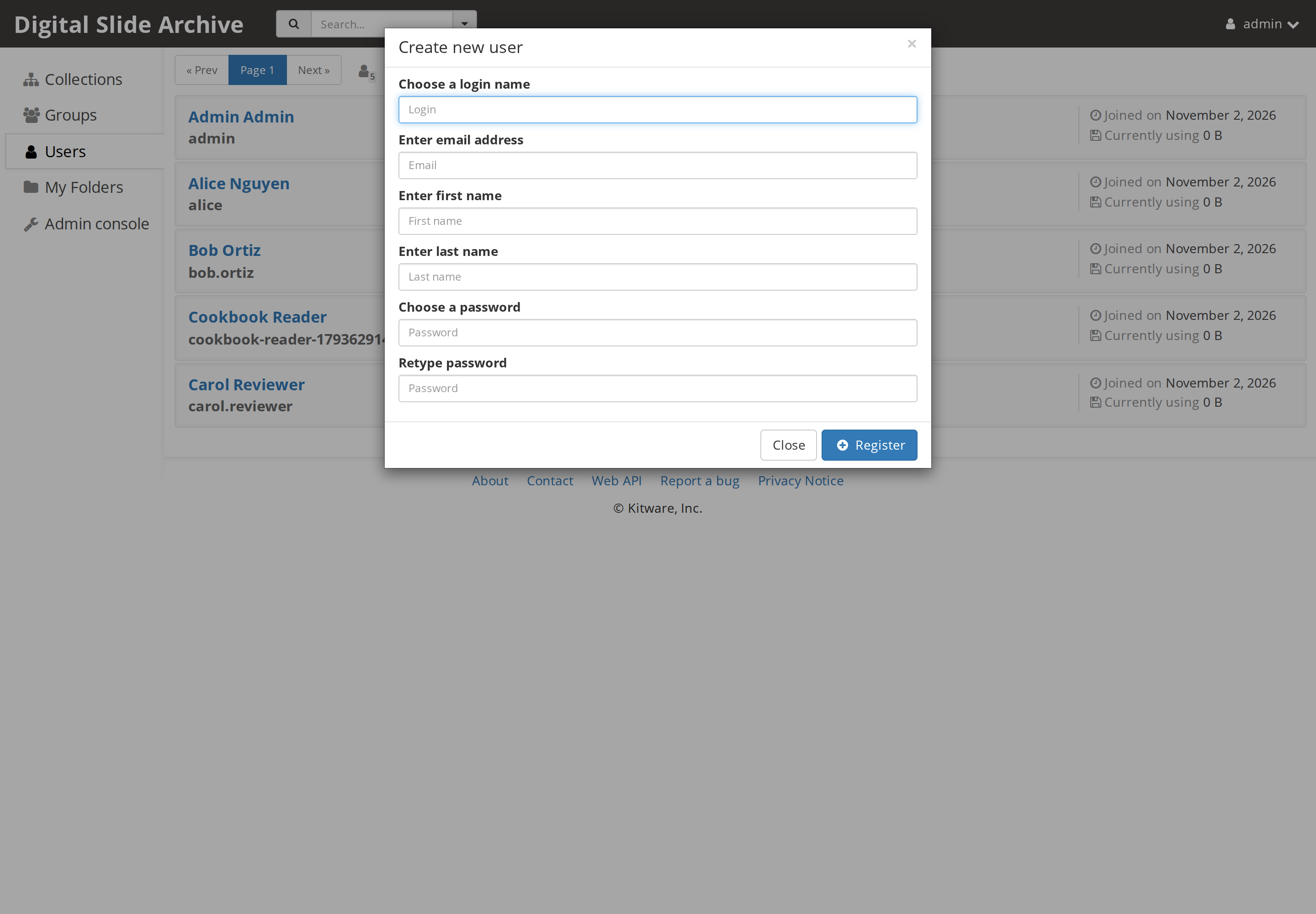
The web form creates a normal, non-admin account. The account is created with the default personal folders configured on the instance. The stock setting is Public and Private, so a new user starts with two folders under My Folders:
| Folder | Initial access |
|---|---|
Private |
Private to the user |
Public |
Public read access |
The folder names and the existence of the pair are not security boundaries; they are a starting layout. The operator can change the default with Server configuration → Create default folders for new users (set it to No to create no default folders). See settings.
If the instance allows open registration, users can also create their own accounts from the sign-in dialog. Registration policy and email verification are operator settings; see settings.
Reset a password
Open the user and choose Actions → Edit user, then the Password tab:
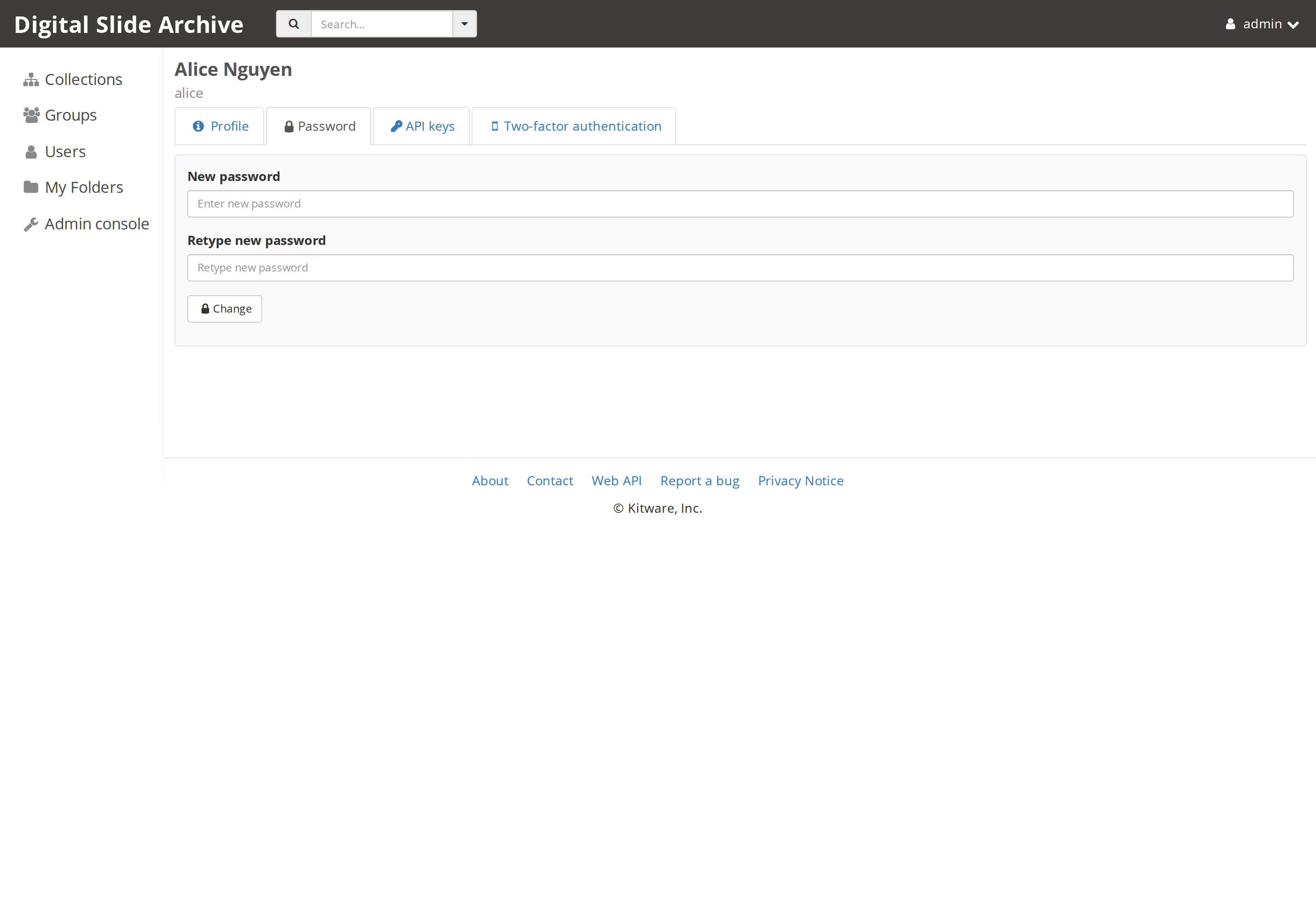
Enter the new password twice and choose Change. The user can also change their own password from My account → Password. This is the supported way to recover an account; do not edit the MongoDB user document.
Grant or remove the site-admin flag
Open the user, choose Actions → Edit user, and use User is site admin:
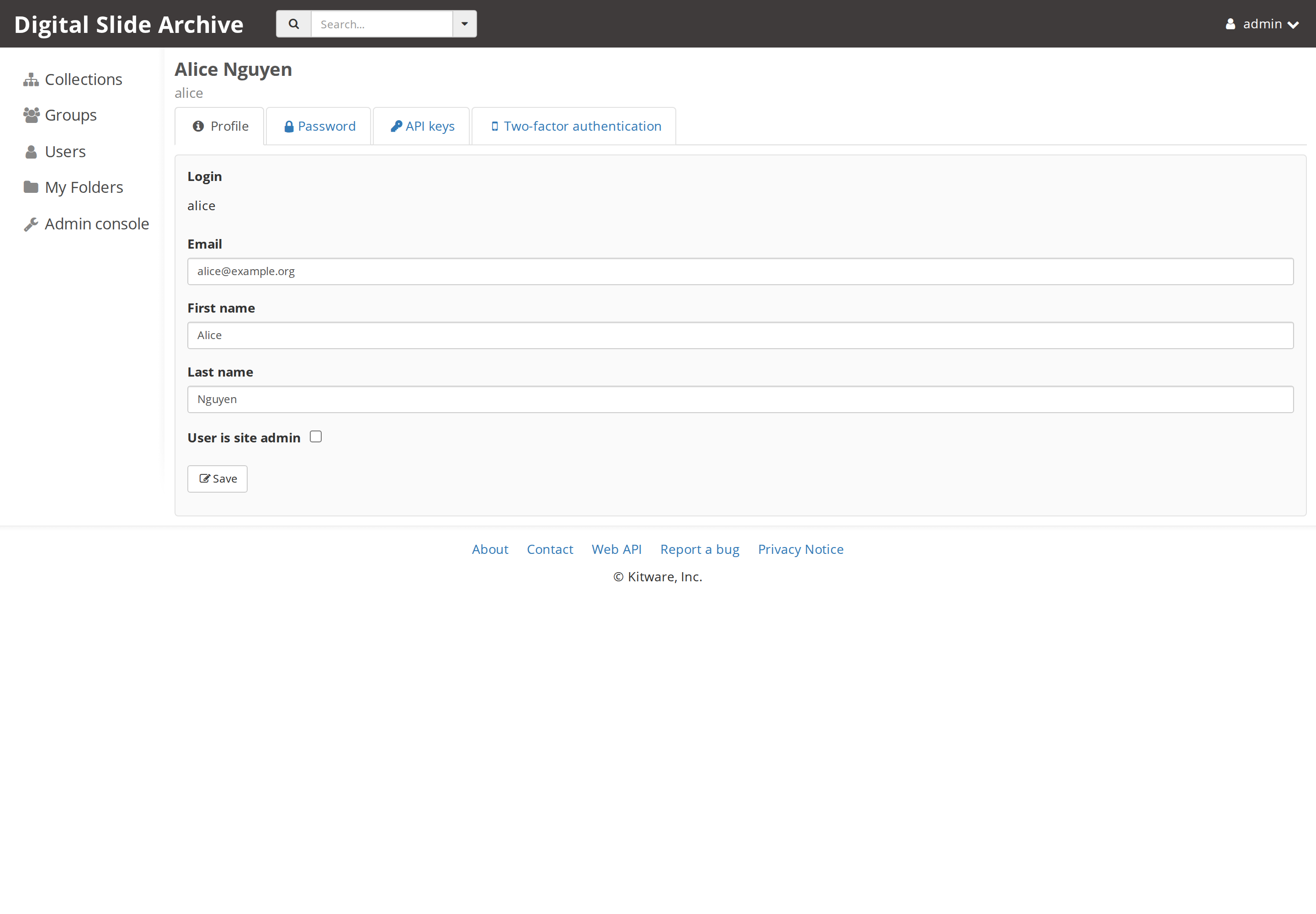
Check the box and choose Save to grant admin access. Uncheck it to remove admin access.
A site admin bypasses normal per-resource access checks and can administer the whole instance. Grant the flag to as few people as possible, and make sure at least one other working admin account exists before you remove your own flag.
The flag is separate from group roles. Making someone a group administrator does not make them a site admin, and making them a site admin does not add them to any group.
Disable and re-enable an account
Open the user and choose Actions → Disable account:
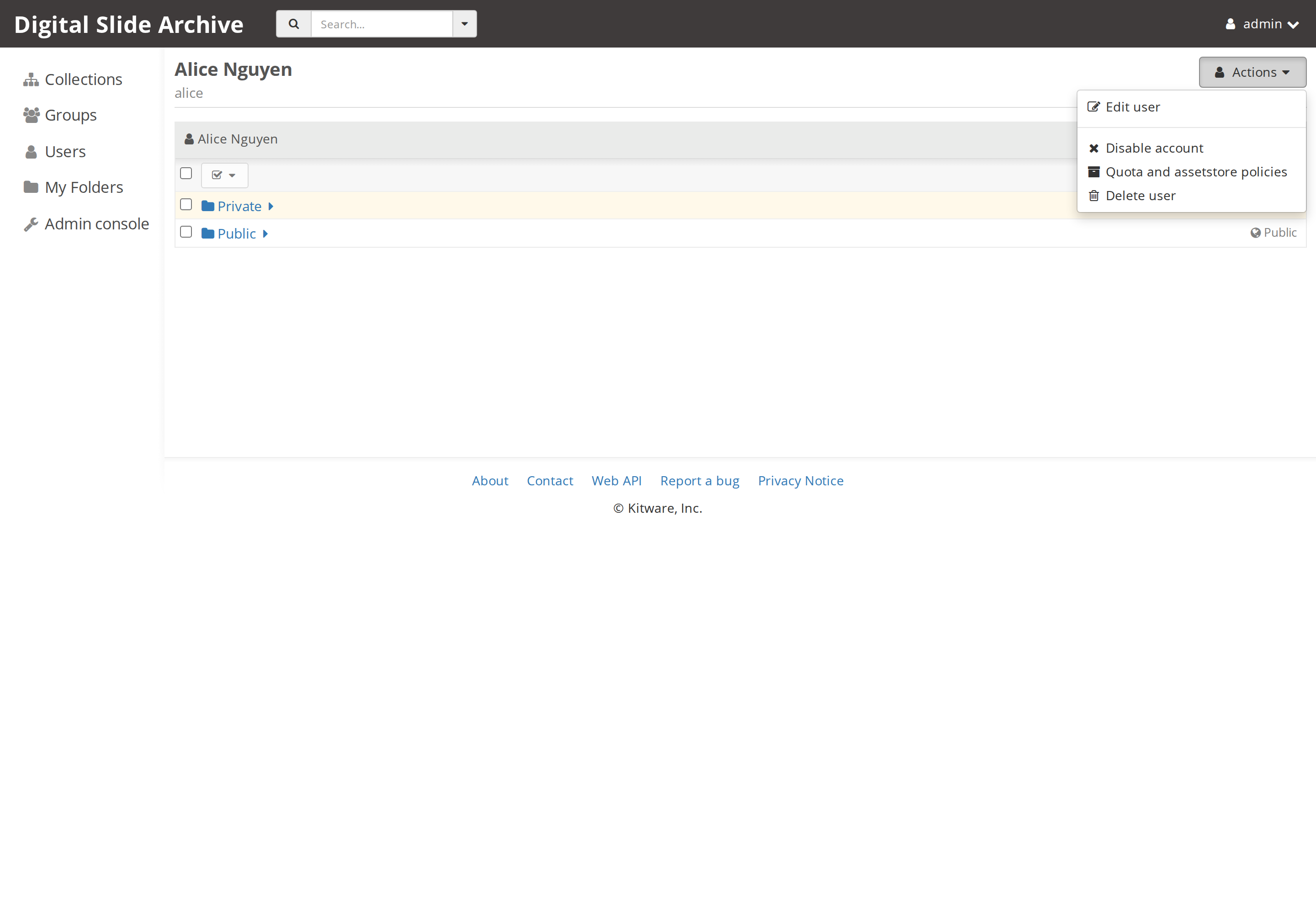
The console confirms with a Disabled user account message. A disabled account cannot sign in; Girder rejects authentication with an "Account is disabled" error. Disabling does not delete the account, remove group memberships, or free the files in the user's folders.
After disabling, the same Actions menu shows Enable account. Choose it to restore sign-in. The account keeps its login, email, groups, and data.
Disabling is the right response to a departed collaborator or a compromised account when you need to preserve the data and the audit trail.
Delete an account
Actions → Delete user is destructive. Girder deletes the account and its authentication tokens, pending group invitations, and the folders under the user's My Folders area, including their items and file records. Uploaded content may be removed from the assetstore during that cleanup; imported files are left on disk by Girder's filesystem adapter. Either way, the account is not reassigned and the data is not moved for you.
Before deleting:
- Copy or transfer anything the user owns that must be kept.
- Check collections and shared folders where the user is the owner or the last manager.
- Confirm that the account is not the only site admin.
- Prefer Disable account if you are not certain.
Groups and group roles
These are Girder's built-in group roles. The generic group model, including public groups and invitation behavior, is documented in the upstream Girder user guide; this page covers the operator-facing screens and the DSA defaults.
Create a group from Groups → Create Group. The creator becomes an administrator member of the new group automatically.
Open a group to manage it. The Roles tab lists administrators, moderators, members, and pending invitations:
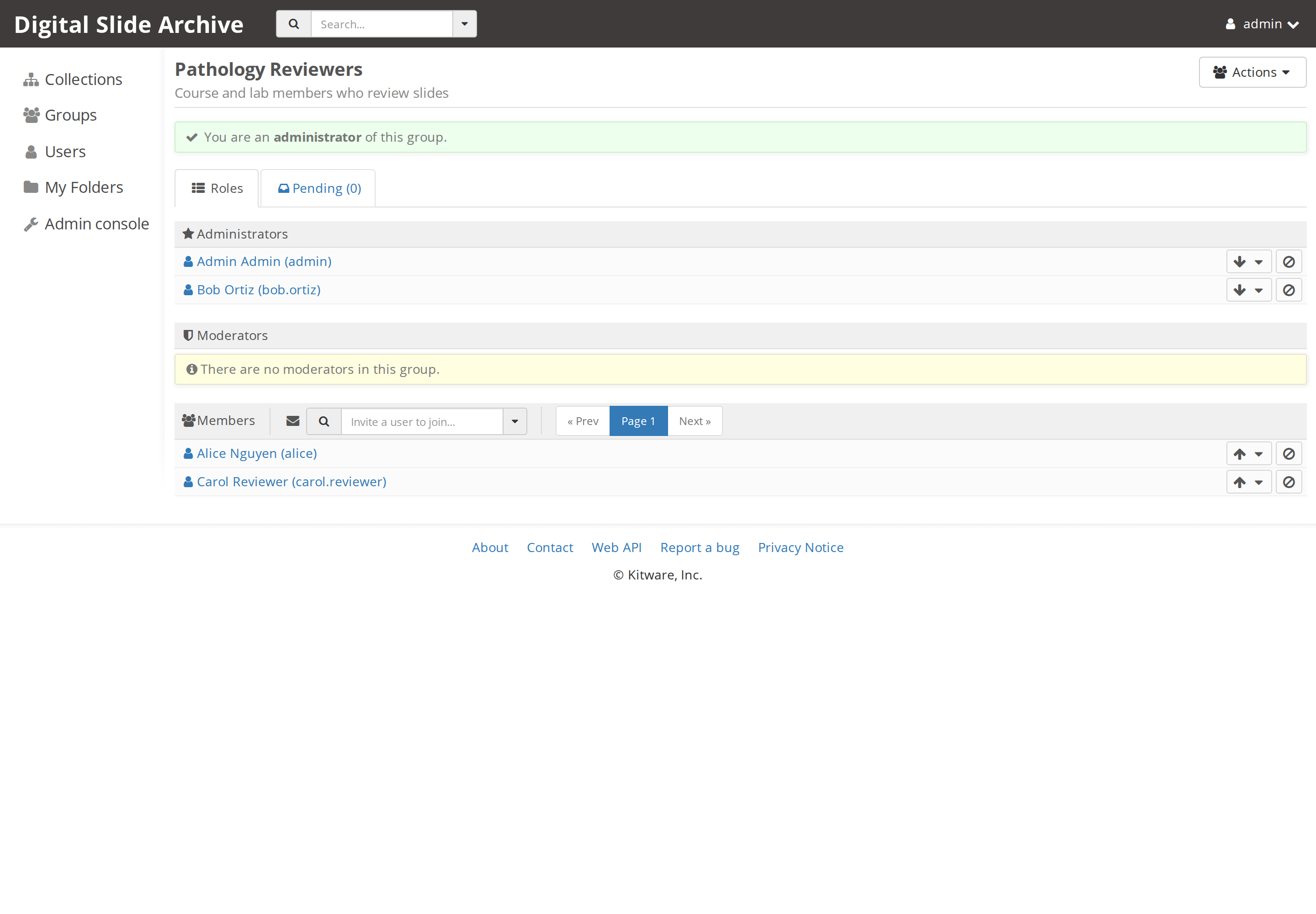
| Role | What it allows on the group |
|---|---|
| Administrator | Manage membership, promote members, edit the group, and delete the group |
| Moderator | Add and remove members and edit the group |
| Member | Belong to the group; no group management |
Group roles control the group, not its resources. To give a group access to a collection or folder, use that resource's Access control dialog and add the group as a principal. The full model, including inheritance and annotation access flags, is in Permissions and access control.
Default groups
The stock instance does not create a default group and does not add new users to a group. A newly created test account belonged to no groups until it was added. If your deployment needs every user in a common group, create the group and add the accounts, or automate it through the REST API.
Direct addition versus invitations
Server configuration → Allow members to be directly added to groups controls whether group administrators and moderators can add people without an invitation. The stock setting requires an invitation that the user accepts. The group page's pending list is where outstanding invitations appear.
Registration and account policy
These operator settings affect new accounts, not existing ones:
| Setting | Where | Effect |
|---|---|---|
| Registration policy | Server configuration → Administrative Policy | Open registration, closed registration, or admin approval |
| Email verification | Server configuration → Administrative Policy | Required, optional, or disabled |
| Create default folders for new users | Server configuration → Administrative Policy | Creates the Public/Private pair or no folders |
| Enable API keys | Server configuration | Allows users to create API keys for scripts |
| Enable password login | Server configuration | Allows password authentication; turn off only when another login method is configured |
| Disable anonymous access | Server configuration | Requires sign-in for all pages |
The instance used for this page has open registration, email verification disabled, and default folders enabled. These are useful defaults for a private lab instance; review them before exposing the instance to the internet. The settings page gives the restart behavior for each group.
Source and version
Account creation, the admin flag, password reset, disabling, and group roles
were checked on a live local DSA 5 instance on 2026-11-13. The delete
behavior and the disabled-login rejection were verified against Girder
5.0.23.dev5+g70eb94dcd source (girder/models/user.py and
girder/api/v1/user.py); a temporary account and its folders were deleted
as part of the test.
| Item | Value |
|---|---|
| DSA / Girder | 5.0.23.dev5+g70eb94dcd |
| HistomicsUI | 1.8.1.dev208+gee5f4c0da.d20261030 |
| Deployment files | devops/ver5 at 2e16b9a |
| Web address | http://localhost:8080 |