Install on Ubuntu 24.04 (DSA 5)
This is a complete, verified walkthrough of a local Digital Slide Archive (DSA)
install on Ubuntu 24.04 using the devops/ver5 Docker Compose stack. It assumes
Docker is already installed and working.
Result: a DSA 5 instance at http://localhost:8080, with Girder,
HistomicsUI, large_image, DICOMweb, Slicer CLI Web, the worker, MongoDB,
RabbitMQ, and Redis all running in Docker.
Which install guide is this?
This page covers the DSA 5 stack in devops/ver5. For the older Girder 3
reference deployment in devops/dsa, see
Install on one machine. The commands are not interchangeable.
Print or share this guide
Download the print-ready PDF,
or the
complete bundle
with the Markdown source, self-contained HTML, PDF, all screenshots,
start.sh, and the raw terminal transcripts. The PDF and HTML are
self-contained and can be shared without the screenshot folder.
1. Check Docker and the host
Run these commands first. They confirm the OS, the Docker engine, the Compose plugin, and that your user can talk to the Docker daemon.
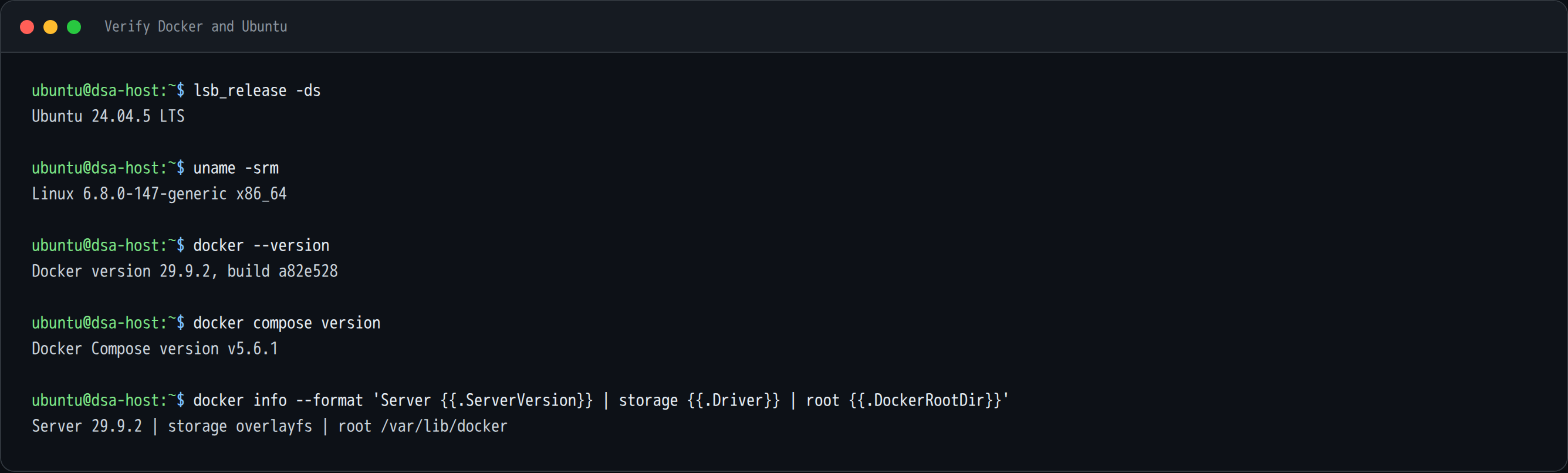
lsb_release -ds
uname -srm
docker --version
docker compose version
docker info --format 'Server {{.ServerVersion}} | storage {{.Driver}} | root {{.DockerRootDir}}'
Expected: Ubuntu 24.04.x, Docker 2x or newer, and a Compose v2+ plugin.
If you get "permission denied" on the Docker socket
A freshly installed Docker daemon only lets members of the docker group use
it. If docker info fails with permission denied while trying to connect to
the Docker API at unix:///var/run/docker.sock, add yourself to the group and
start a fresh login session:
Verify again with docker info. You should not need sudo for the rest of this
guide.
Hardware and disk
- 2 CPU cores and 8 GB RAM is enough to boot the stack and click around.
- Plan on roughly 8–12 GB of disk for the container images plus the database and assetstore.
- The first image pull is the slow part. Later starts are fast because the images are cached.
2. Clone the repository
DSA keeps its deployment files in the same repository as the application.
Clone it into ~/devel:

mkdir -p ~/devel
cd ~/devel
git clone https://github.com/digitalSlideArchive/digital_slide_archive.git digital-slide-archive
cd digital-slide-archive
git log --oneline -1
The result is ~/devel/digital-slide-archive. This guide was written against
commit 2e16b9a.
3. Look at the devops/ver5 stack
The version 5 Compose stack lives in devops/ver5:
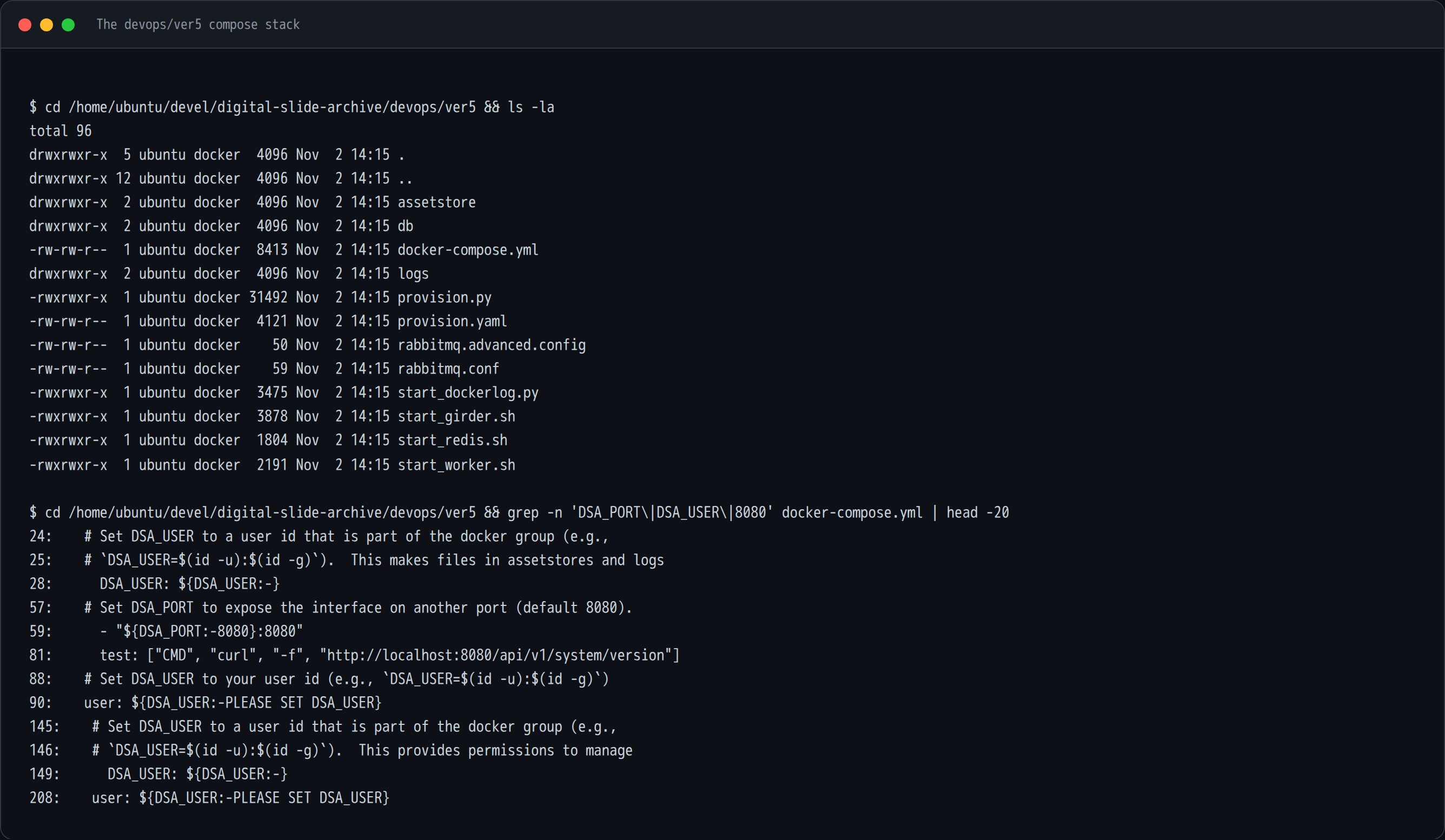
Important files and directories:
| Path | Purpose |
|---|---|
docker-compose.yml |
Defines the girder, worker, mongodb, rabbitmq, redis, and logging services |
provision.py, provision.yaml |
Creates the initial admin user, collections, and plugin settings |
assetstore/ |
Bind-mounted assetstore for uploaded files |
db/ |
Bind-mounted MongoDB data directory |
logs/ |
Bind-mounted application logs |
start_girder.sh, start_worker.sh |
Container entry points that honor DSA_USER |
Two details in docker-compose.yml matter for a local install:
- Girder is published on
${DSA_PORT:-8080}:8080. The default ishttp://localhost:8080. DSA_USERcontrols the UID/GID used for files written toassetstore/,db/, andlogs/. If it is omitted, files can end up owned byroot.
4. Create the start script
Create a small start.sh next to the Compose file. It always brings the stack
down first, then starts it detached as your user.
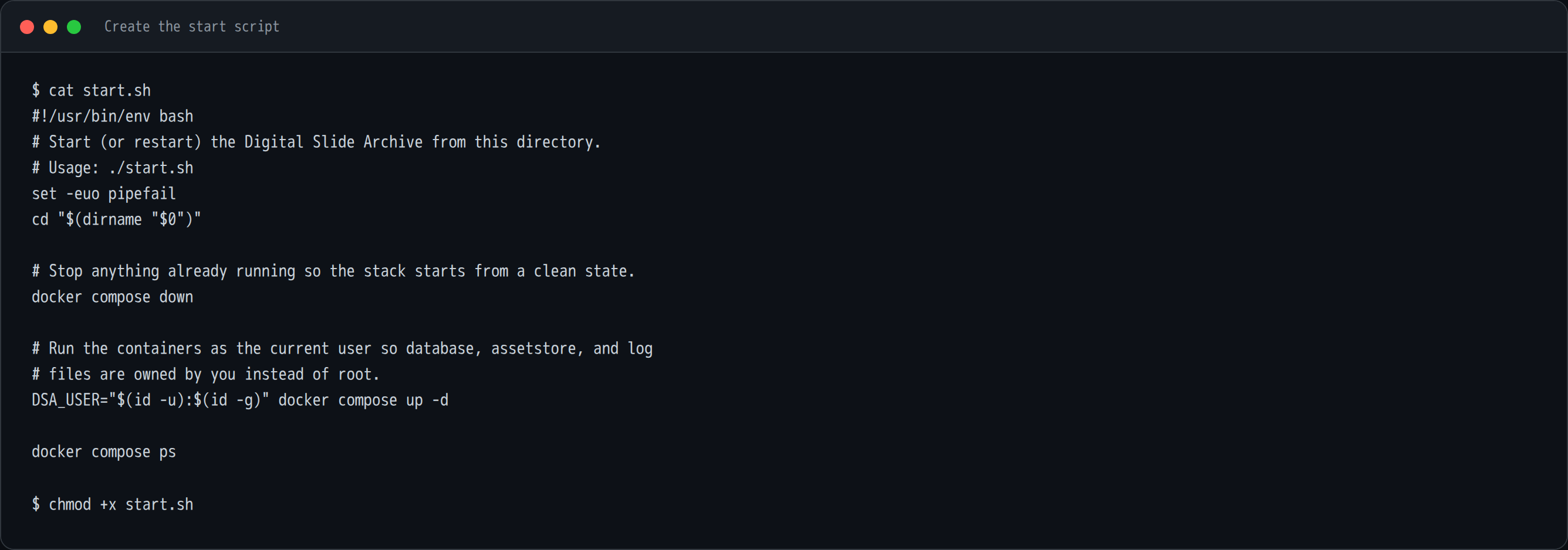
cat > start.sh <<'EOF'
#!/usr/bin/env bash
# Start (or restart) the Digital Slide Archive from this directory.
# Usage: ./start.sh
set -euo pipefail
cd "$(dirname "$0")"

# Stop anything already running so the stack starts from a clean state.
docker compose down

# Run the containers as the current user so database, assetstore, and log
# files are owned by you instead of root.
DSA_USER="$(id -u):$(id -g)" docker compose up -d

docker compose ps
EOF

chmod +x start.sh
Why these lines matter:
docker compose downmakes the script safe to run repeatedly. It removes the containers and network but keeps the bind-mounted data.DSA_USER="$(id -u):$(id -g)"passes your host UID/GID into the containers so the bind-mounted files stay owned by you.up -druns in the background. The command returns before Girder has finished starting.
5. Pull the images
Pull once before the first start. This avoids waiting for a build and makes the first boot much more predictable.
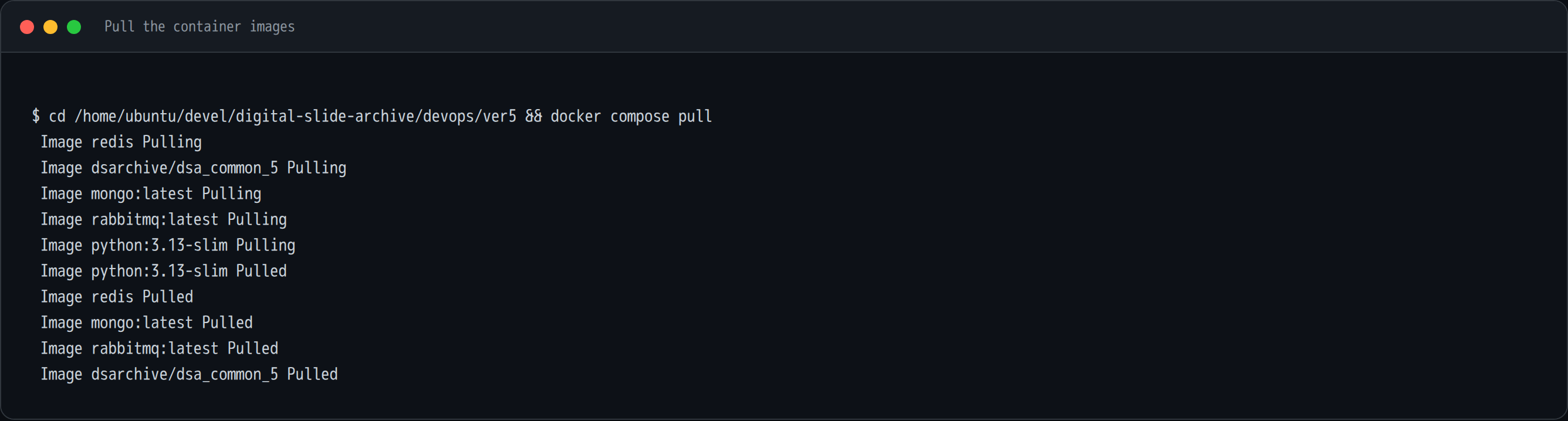
The stack uses:
dsarchive/dsa_common_5for bothgirderandworkermongo:latestrabbitmq:latestredispython:3.13-slimfor the container-log collector
The DSA image is the large one. Expect several minutes and several GB on a first pull; on later runs this step is quick because the layers are cached.
6. Start the stack
Run the script:
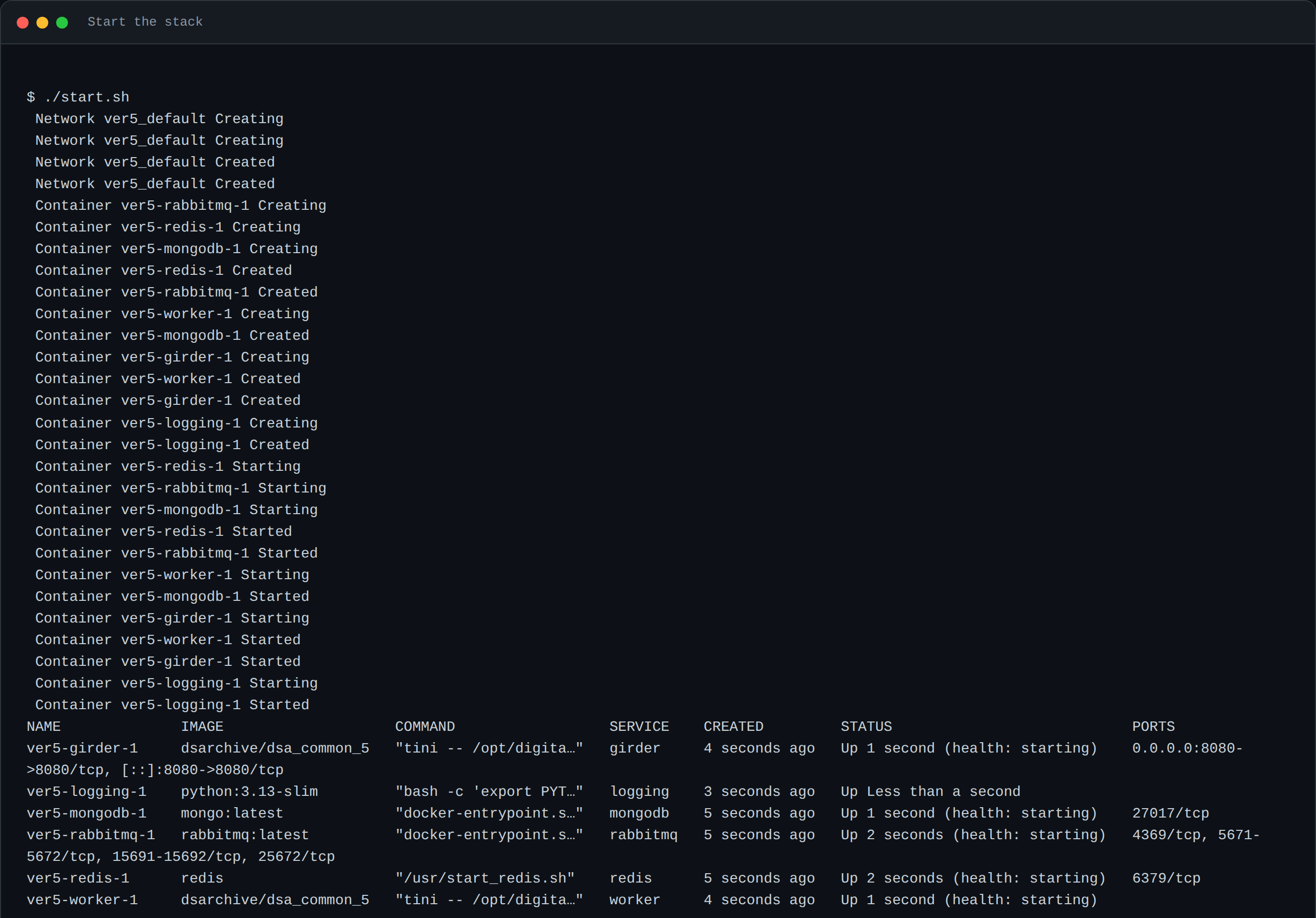
You will see Compose create the network and the six containers:
| Container | Role |
|---|---|
ver5-girder-1 |
Web application and REST API (port 8080) |
ver5-worker-1 |
Girder Worker / Celery worker for analysis jobs |
ver5-mongodb-1 |
Database |
ver5-rabbitmq-1 |
Broker for the worker |
ver5-redis-1 |
Cache and notification backend |
ver5-logging-1 |
Collects container logs into logs/ |
On the first run, Girder also creates the admin user and the default collections. Give it a minute or two.
A note about health status
docker compose ps may report health: starting for Girder for several
minutes because the healthcheck interval in the Compose file is five
minutes. The application can already be serving requests while Docker still
shows starting. Confirm readiness with the API check below rather than
waiting on the label.
7. Verify that DSA is up
Check the containers and ask the API for its version:
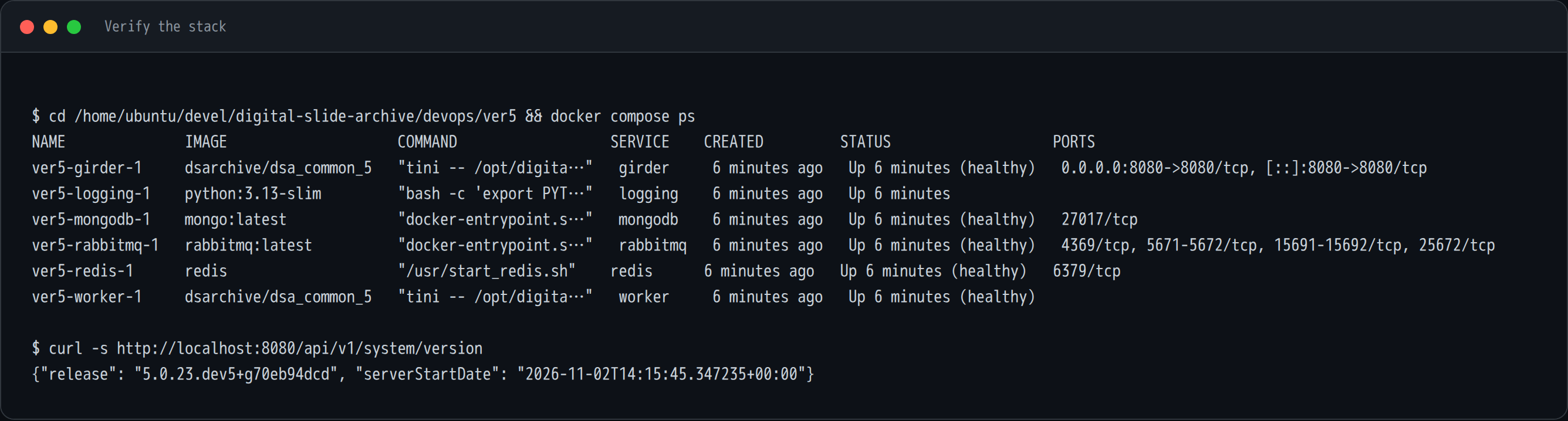
A healthy API response looks like:
If the curl command hangs or refuses the connection, give Girder another
minute and check its log:
Look for ==== Starting Girder ==== and the plugin list. A healthy first boot
loads large_image, large_image_annotation, histomicsui, dicomweb,
slicer_cli_web, worker, and the other DSA plugins.
8. Open DSA in a browser
Browse to http://localhost:8080.
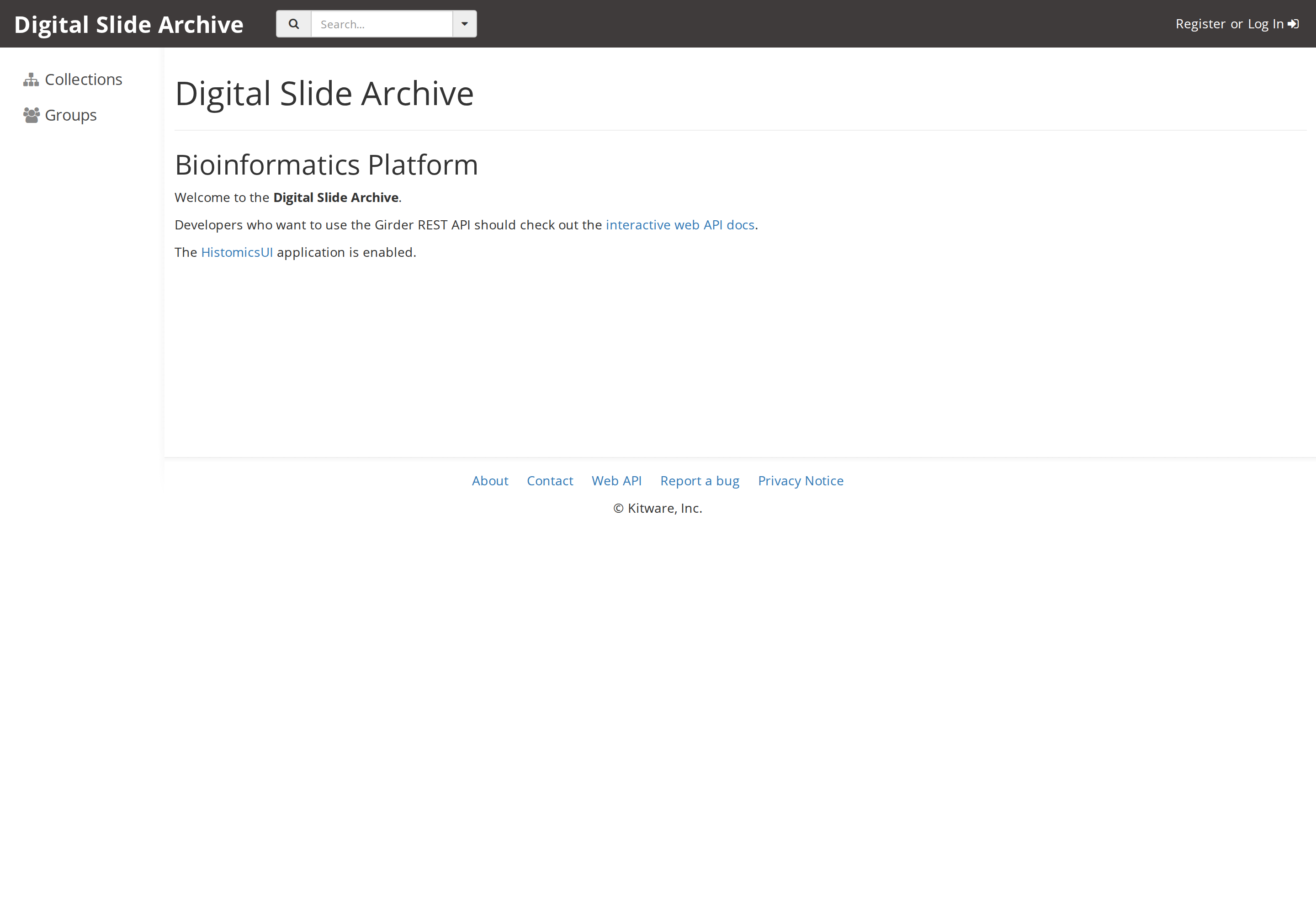
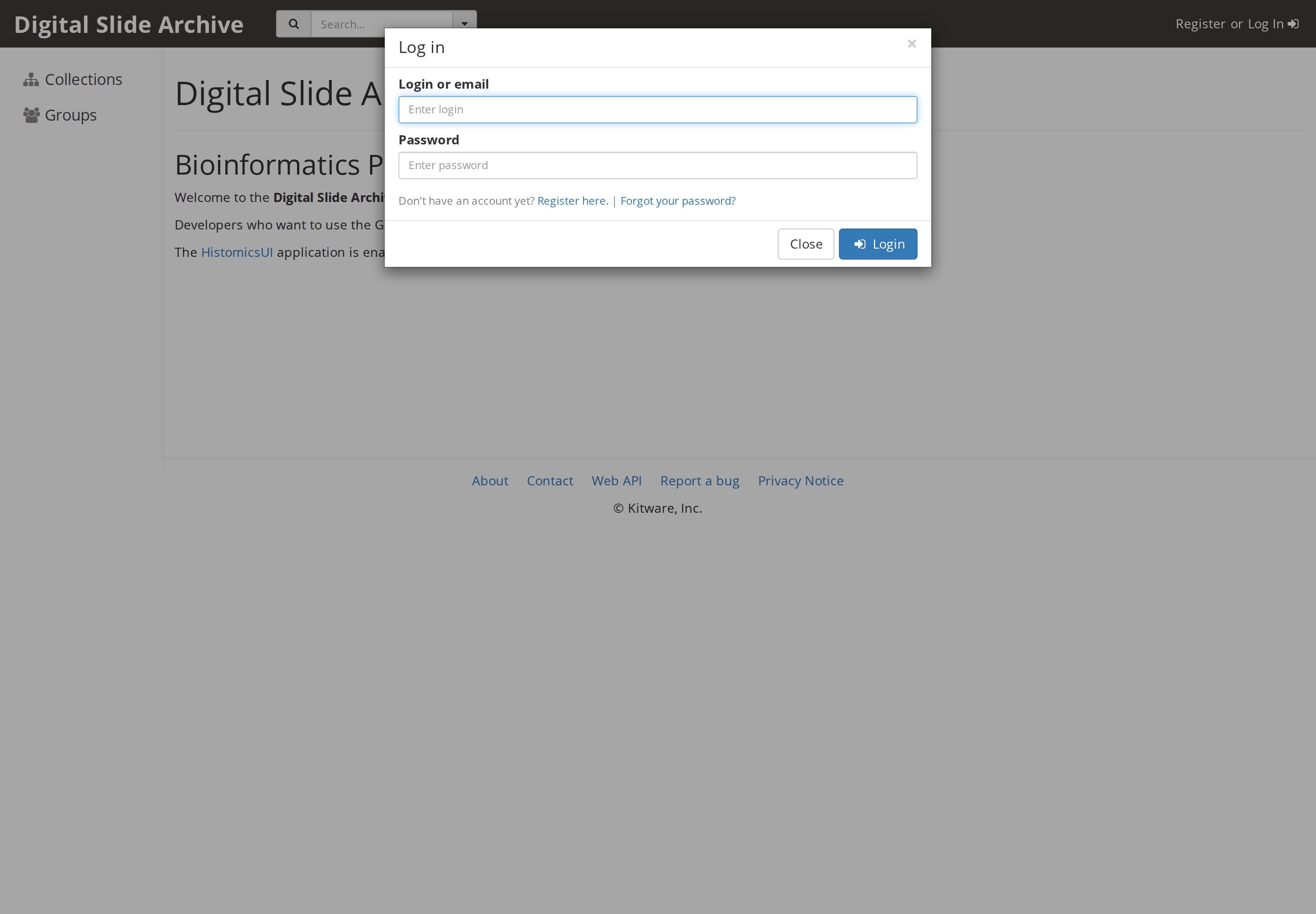
The stock devops/ver5 provisioning creates one admin account:
| Username | Password |
|---|---|
admin |
password |
Click Log In:
After signing in, the navigation bar shows the admin console, collections, groups, and users:
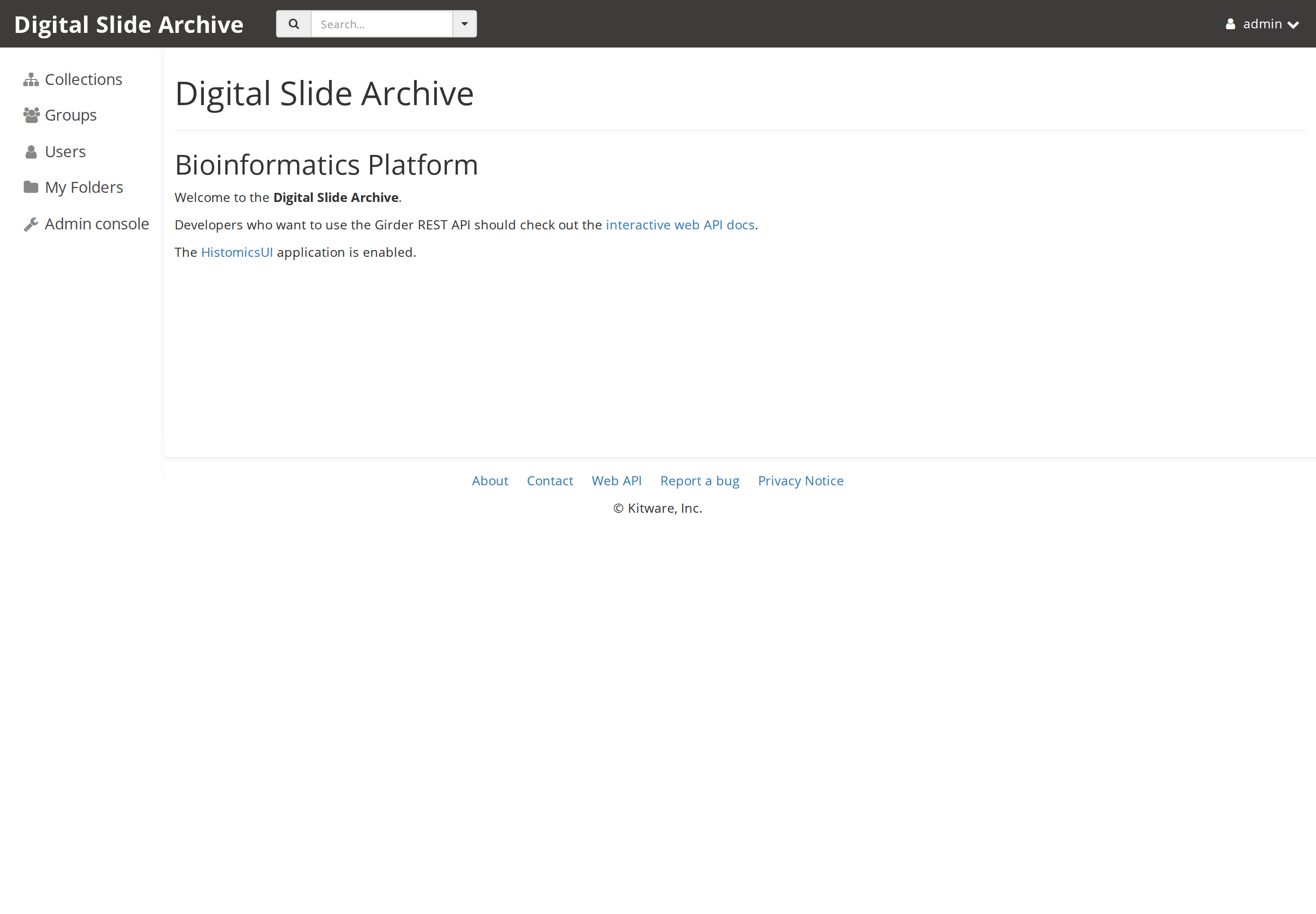
Change the default password
Change the default admin password before putting this instance on a shared network. Use My account → Password in the web UI.
Verify the plugins
Open Admin console → Plugins (or go directly to
http://localhost:8080/#plugins). This page shows the installed plugin set and
the DSA version:
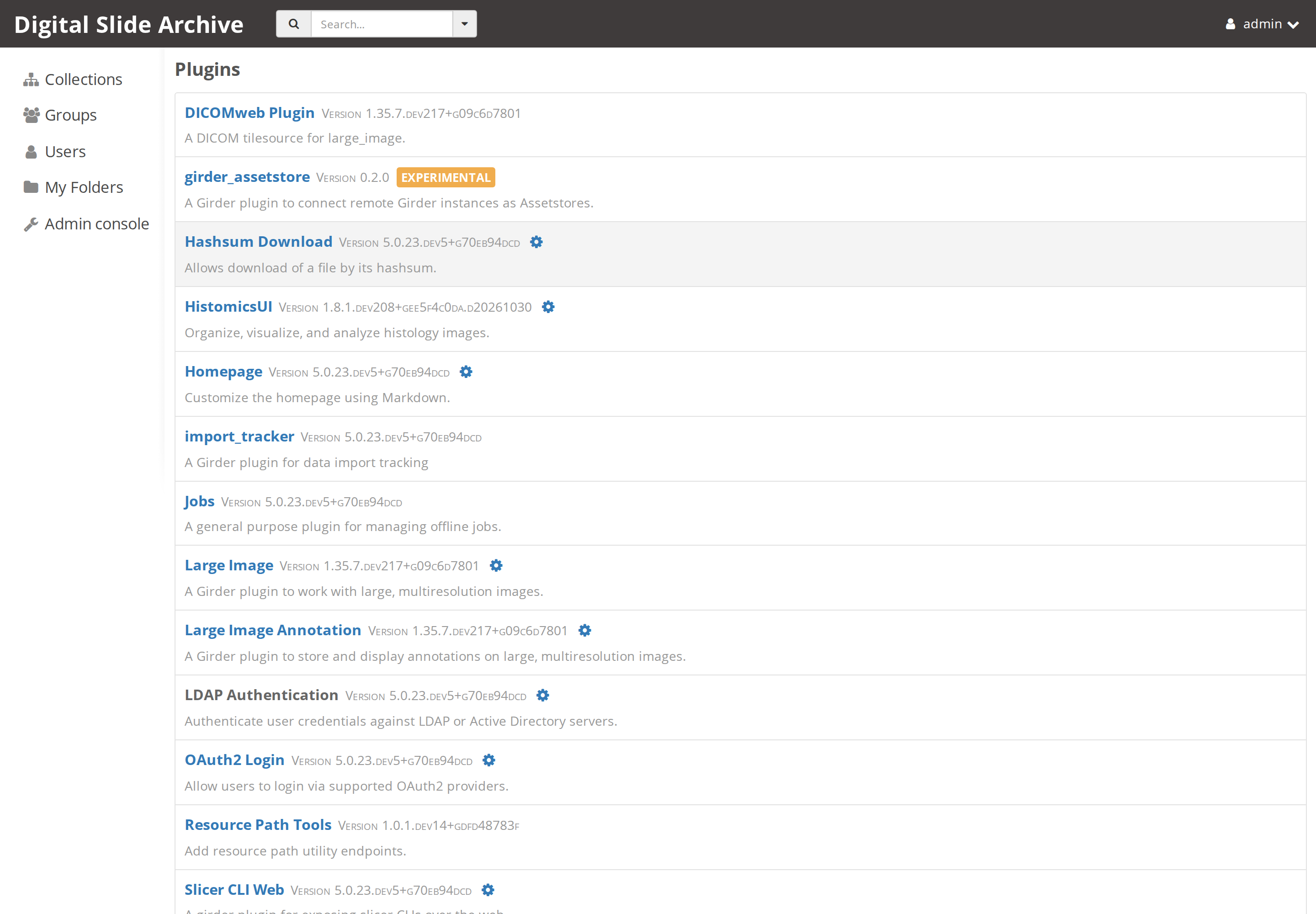
You should see HistomicsUI, large_image, DICOMweb, Slicer CLI Web,
Worker, and the rest of the DSA plugin stack. The DSA release is shown at the
top of the page.
Open HistomicsUI
HistomicsUI is the digital-slide workspace and is the entry point for slide viewing and analysis:
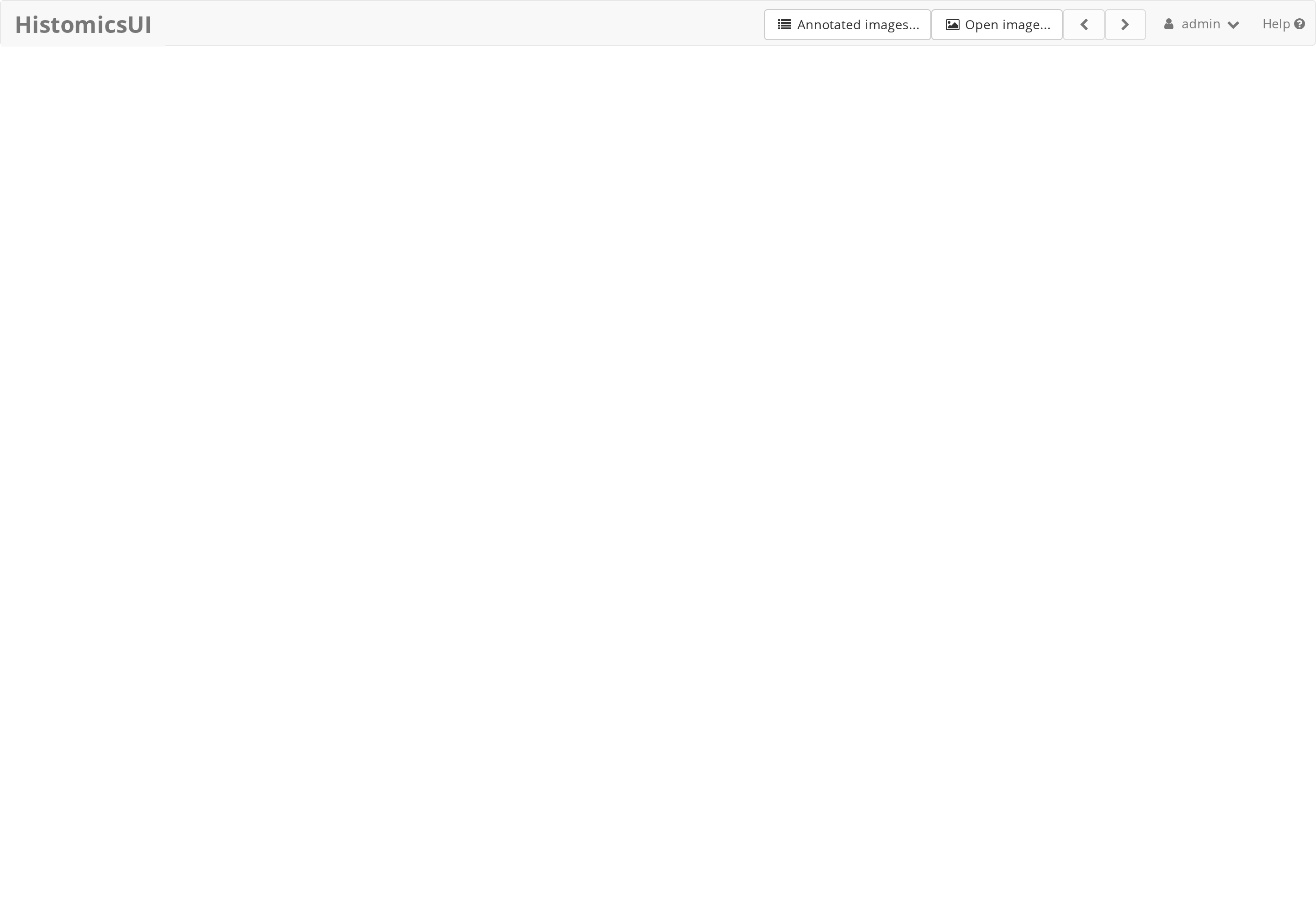
Use Open image… after uploading a slide to open the viewer. For this install check, simply seeing the authenticated HistomicsUI landing page is enough to confirm that the web application, authentication, and plugin routing are working.
9. Day-to-day commands
Run these from ~/devel/digital-slide-archive/devops/ver5.
| Task | Command |
|---|---|
| Start or restart everything | ./start.sh |
| Start in the foreground (see all logs) | DSA_USER=$(id -u):$(id -g) docker compose up |
| Stop the stack | docker compose down |
| Show status | docker compose ps |
| Follow Girder logs | docker compose logs -f girder |
| Follow worker logs | docker compose logs -f worker |
| Open a shell in Girder | docker compose exec girder bash |
| Check the API version | curl -s http://localhost:8080/api/v1/system/version |
| Use a different host port | DSA_PORT=8081 ./start.sh |
Where the data lives
- Uploaded files:
devops/ver5/assetstore/ - MongoDB data:
devops/ver5/db/ - Application logs:
devops/ver5/logs/
Because these are bind mounts, docker compose down does not delete them.
To reset to a completely fresh instance, stop the stack and remove those three
directories:
This is destructive
Take a backup first if the instance has data you care about.
10. Troubleshooting
permission denied ... /var/run/docker.sock
Your shell is not in the docker group yet. Run sudo usermod -aG docker
"$USER", then log out and back in (or newgrp docker), and retry.
Bind for 0.0.0.0:8080 failed: port is already allocated
Something else is using port 8080. Start DSA on another port with
DSA_PORT=8081 ./start.sh, then browse to http://localhost:8081.
Girder stays on health: starting
This is expected for a while because the healthcheck interval is five minutes.
Check curl -s http://localhost:8080/api/v1/system/version and docker compose
logs --tail=100 girder. If the API responds, the instance is usable.
The first start seems to hang
The first boot runs database provisioning, creates the admin user, and
configures plugins. Watch docker compose logs -f girder and give it a few
minutes. Later starts are much faster.
MongoDB exits or complains about memory maps
The Compose file limits Mongo connections to reduce shared-memory demand. On a
small host, make sure the machine has enough RAM and that vm.max_map_count is
at least the Docker default (262144). Check with sysctl vm.max_map_count.
Containers start but files in assetstore/, db/, or logs/ are owned by root
You started the stack without DSA_USER. Use the provided start.sh, or pass
DSA_USER=$(id -u):$(id -g) explicitly.
I need to start completely over
Stop the stack, remove the bind-mounted data as shown above, and run
./start.sh. Pulled images remain cached.
Screenshot index
The screenshots follow the capture story. The numbers match the filenames in the downloaded bundle.
| Screenshot | What it shows |
|---|---|
01-prerequisites.png |
Ubuntu, kernel, Docker, and Compose versions |
02-clone-repo.png |
Repository clone and checked-out commit |
03-ver5-directory.png |
The devops/ver5 stack and its Compose settings |
04-start-script.png |
The start.sh script |
05-pull-images.png |
Pulling the five container images |
06-start-containers.png |
Compose creating and starting the six containers |
07-container-health.png |
docker compose ps and the DSA version API |
10-dsa-landing.png |
DSA landing page at localhost:8080 |
11-dsa-login.png |
Login dialog |
12-dsa-home-admin.png |
Signed-in home page with admin navigation |
13-dsa-plugins.png |
Installed plugins and DSA release |
14-histomicsui.png |
HistomicsUI landing page |
Next
Source and version
This walkthrough was run end to end on a clean host on 2026-11-02. Commands and version claims below are frozen at that run; report corrections rather than editing them silently.
| Item | Value |
|---|---|
| Host OS | Ubuntu 24.04.5 LTS (kernel 6.8.0-147-generic, x86_64) |
| Docker Engine | 29.9.2 |
| Docker Compose | v5.6.1 |
| Repository | https://github.com/digitalSlideArchive/digital_slide_archive |
| Checked-out commit | 2e16b9a (Merge pull request #538 from DigitalSlideArchive/update-trivy) |
| Install directory | ~/devel/digital-slide-archive |
| DSA version reported by the API | 5.0.23.dev5+g70eb94dcd |
| Web address | http://localhost:8080 |